MTO Validation Guide#
In this guide, we will set up two tenants—Logistics and Retail—for an imaginary e-commerce company, each with one user.
- Falcon will be the user assigned to the Logistics tenant.
- Bear will be the user assigned to the Retail tenant.
1. Create & Configure Azure Users & Groups#
1.1. Create a user#
Fetch the cluster ID using following command. We will use cluster ID to assign role to our logistics group
AKS_ID=$(az aks show --resource-group "$RG_NAME" --name "$CLUSTER_NAME" --query id -o tsv)
Create an active directory group named logistics
GROUP_ID=$(az ad group create --display-name "logistics" --mail-nickname "logistics" --query "id" --output tsv)
Assign Azure Kubernetes Service Cluster User Role to logistics group
az role assignment create --assignee "$GROUP_ID" --role "Azure Kubernetes Service Cluster User Role" --scope "$AKS_ID"
Create a user with username falcon@nordmart.com
az ad user create --display-name "Golden Falcon" \
                    --user-principal-name "falcon@nordmart.com" \
                    --password "<PASSWORD>"
Fetch the user id with following command
ad_user_id=$(az ad user show --id "falcon@nordmart.com" --query "id" --output tsv)
Add user to logistics group
az ad group member add --group "logistics" --member-id "<USER_ID>"
Repeat the same steps to create another group retail with user bear@nordmart.com for retail tenant.
2. Create MTO Quota#
As cluster admin create a Quota CR with some resource limits:
kubectl apply -f - <<EOF
apiVersion: tenantoperator.stakater.com/v1beta1
kind: Quota
metadata:
  name: small
spec:
  limitrange:
    limits:
    - max:
        cpu: 800m
      min:
        cpu: 200m
      type: Container
  resourcequota:
    hard:
      configmaps: "10"
      memory: "8Gi"
EOF
3. Create MTO Tenants#
As cluster admin create 2 tenants logistics and retail with one user each:
kubectl apply -f - <<EOF
apiVersion: tenantoperator.stakater.com/v1beta3
kind: Tenant
metadata:
  name: logistics
spec:
  namespaces:
    withTenantPrefix:
    - dev
    - build
  accessControl:
    owners:
      users:
      - falcon@nordmart.com
  quota: small
EOF
kubectl apply -f - <<EOF
apiVersion: tenantoperator.stakater.com/v1beta3
kind: Tenant
metadata:
  name: retail
spec:
  namespaces:
    withTenantPrefix:
    - dev
    - build
  accessControl:
    owners:
      users:
      - bear@nordmart.com
  quota: small
EOF
Notice that the only difference in both tenant specs are the users.
4. List namespaces as cluster admin#
Listing the namespaces as cluster admin will show following namespaces:
$ kubectl get namespaces

NAME                    STATUS   AGE
cert-manager            Active   8d
default                 Active   9d
kube-node-lease         Active   9d
kube-public             Active   9d
kube-system             Active   9d
multi-tenant-operator   Active   8d
random                  Active   8d
logistics-dev           Active   5s
logistics-build         Active   5s
retail-dev              Active   5s
retail-build            Active   5s
5. Validate Falcon permissions#
5.1. Switch to falcon#
Run the Azure CLI login command to interactively login as falcon@nordmart.com. Running the following command will open browser for interactive login
az login
Run the following command to update the kubectl context with logged-in user
az aks get-credentials --resource-group "<RESOURCE_GROUP_NAME>" --name "<CLUSTER_NAME>"
5.2. Check CLI permissions#
We will now try to deploy a pod from user falcon@nordmart.com in its tenant namespace logistics-dev
$ kubectl run nginx --image nginx -n logistics-dev

pod/nginx created
And if we try the same operation in the other tenant with the same user, it will fail
$ kubectl run nginx --image nginx -n retail-dev

Error from server (Forbidden): pods is forbidden: User "falcon@nordmart.com" cannot create resource "pods" in API group "" in the namespace "retail-dev"
To be noted, falcon@nordmart.com can not list namespaces
$ kubectl get namespaces

Error from server (Forbidden): namespaces is forbidden: User "falcon@nordmart.com" cannot list resource "namespaces" in API group "" at the cluster scope
5.3. Validate Console permissions#
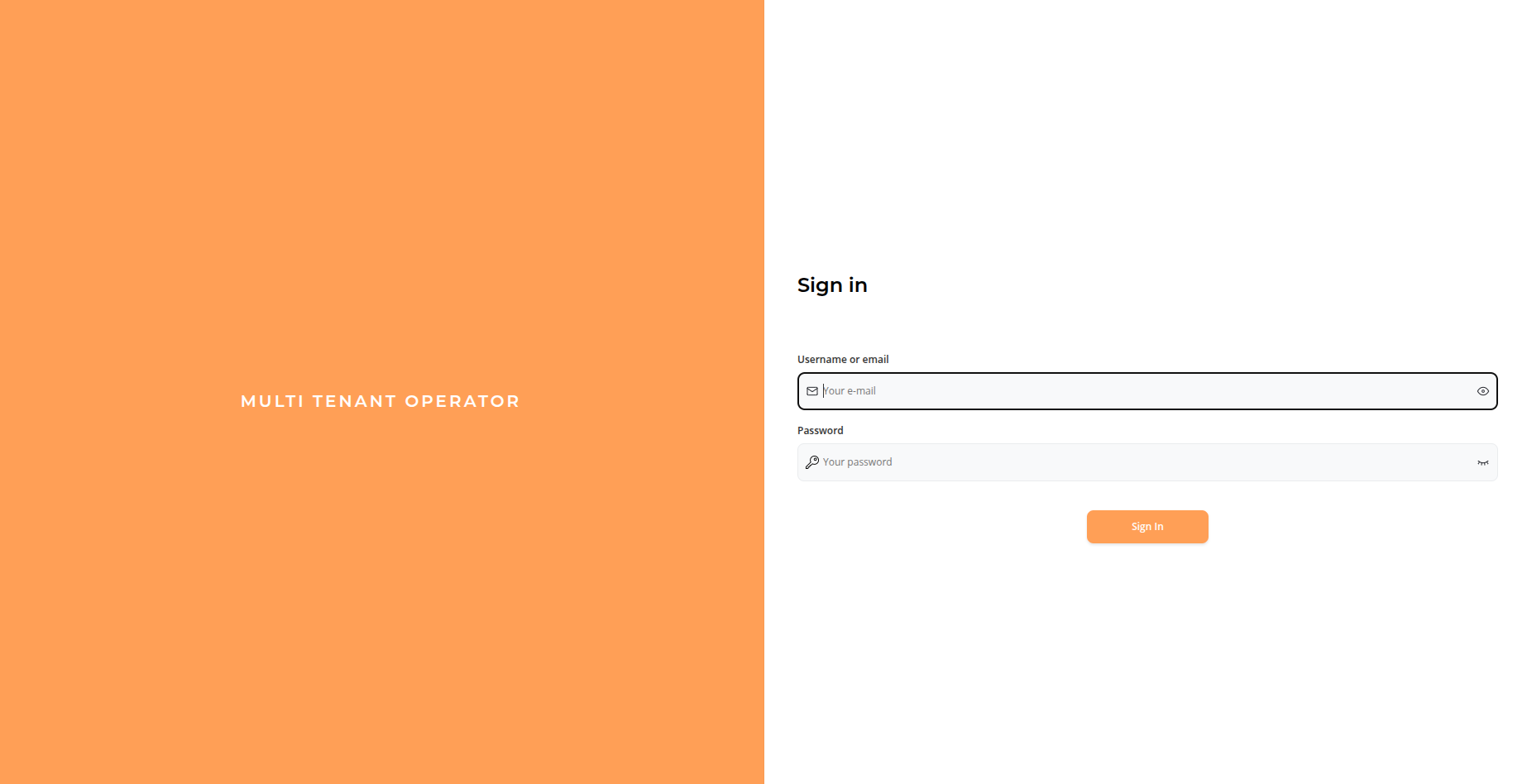
Navigate to MTO Console URL and Log In with the user credentials.
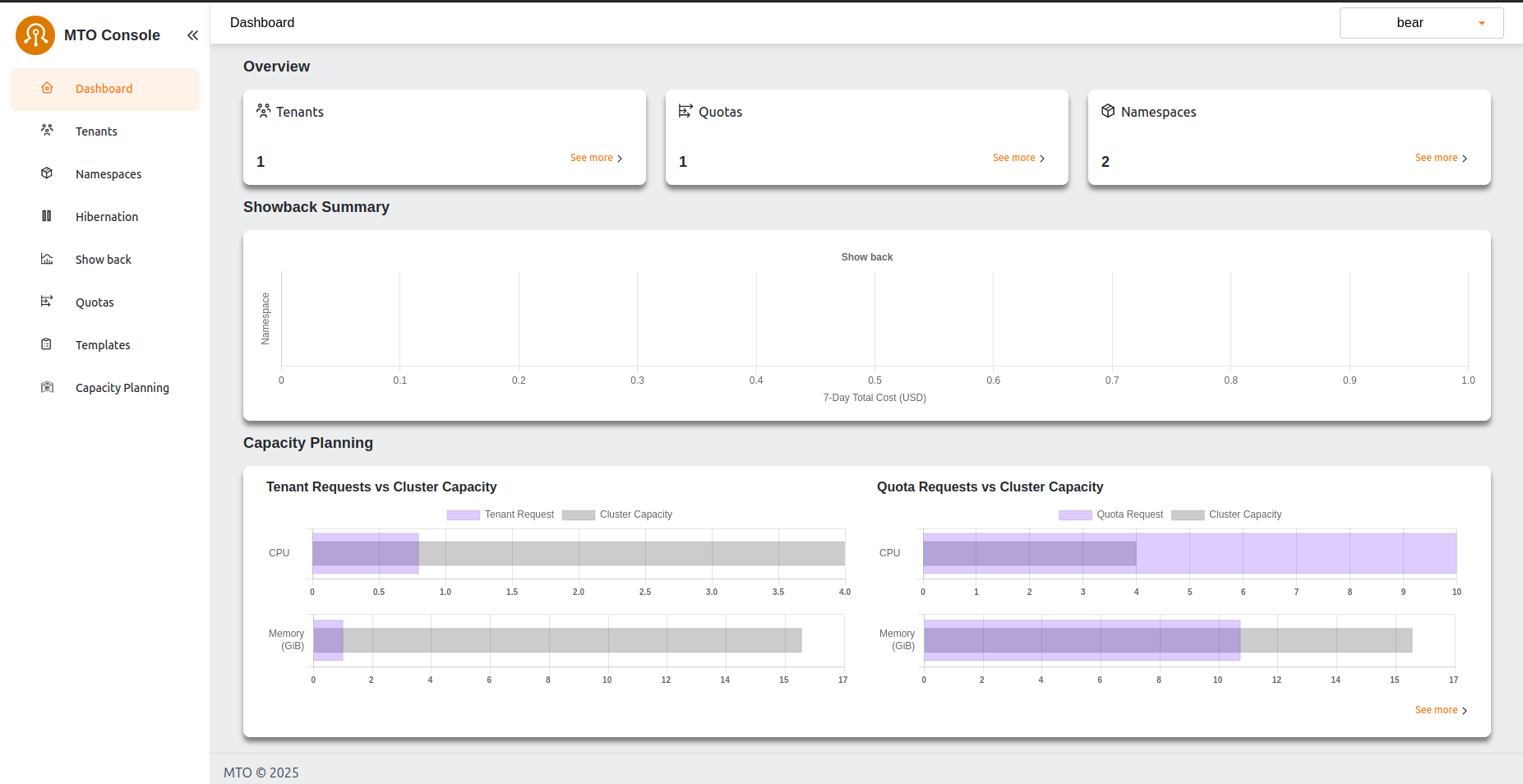
Dashboard will open after the successful login. Now you can navigate different tenants and namespaces using MTO Console
6. Validate Bear permissions#
6.1. Switch to bear#
Run the Azure CLI login command to interactively login as bear@nordmart.com. Running the following command will open browser for interactive login
az login
6.2. Check CLI permissions#
We will repeat the above operations for our retail user bear@nordmart.com as well
$ kubectl run nginx --image nginx -n retail-dev

pod/nginx created
Trying to do operations outside the scope of its own tenant will result in errors
$ kubectl run nginx --image nginx -n retail-dev

Error from server (Forbidden): pods is forbidden: User "bear@nordmart.com" cannot create resource "pods" in API group "" in the namespace "retail-dev"
To be noted, bear@nordmart.com can not list namespaces
$ kubectl get namespaces

Error from server (Forbidden): namespaces is forbidden: User "bear@nordmart.com" cannot list resource "namespaces" in API group "" at the cluster scope
6.3. Validate Console permissions#
Navigate to MTO Console URL and Log In with the user credentials.
Dashboard will open after the successful login. Now you can navigate different tenants and namespaces using MTO Console