How to Provision an OpenShift Cluster#
Learn how to provision a managed OpenShift cluster for your team via an OpenShiftCluster claim.
Sam, a senior platform engineer at ACME Corp, needs to provide a dedicated OpenShift cluster for a product team. Sam can provision a fully managed cluster with a default node pool, networking mode, and group-based access — all through a single claim.
Prerequisites#
- Access to your organisation's project
- The
openshiftcluster.kubernetes.cloud.stakater.comAPI available kubectlconfigured with your organisation project kubeconfig- Sufficient permissions to create
OpenShiftClusterresources
What Gets Created#
When you create an OpenShiftCluster claim, the platform provisions:
- A managed OpenShift hosted cluster with a dedicated control plane
- A default node pool sized via a T-shirt size (
small,medium,large,xlarge) - Keycloak OAuth integration so users can sign in with their organisation identity
- Group-to-role bindings for cluster access (optional)
- Bootstrap credentials, console URL, and API endpoint exposed on the claim status
In the Console#
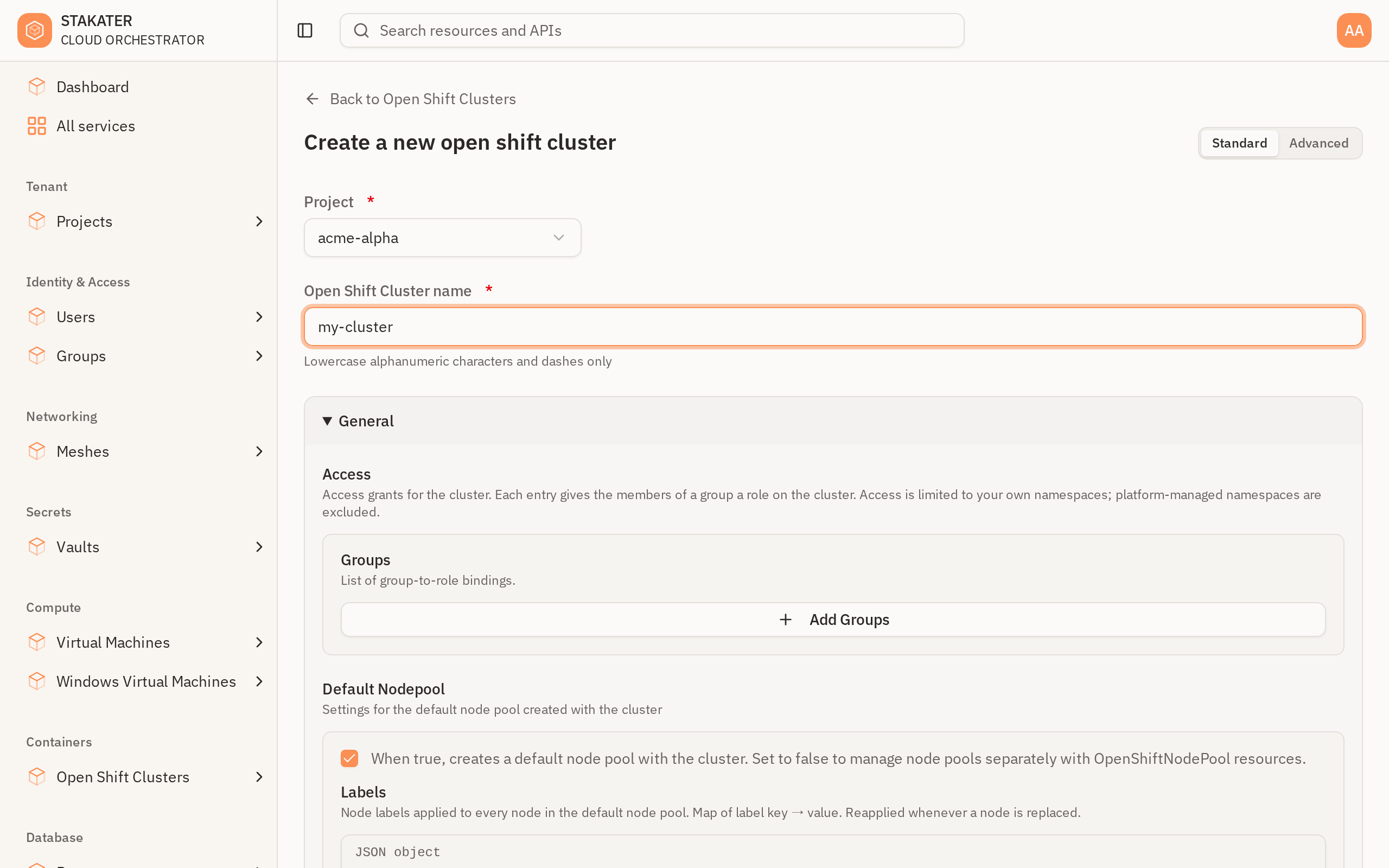
Clusters are under Containers in the sidebar. The create form opens in Standard mode, which asks for the same one field the minimal claim below does — everything else falls back to a platform default:
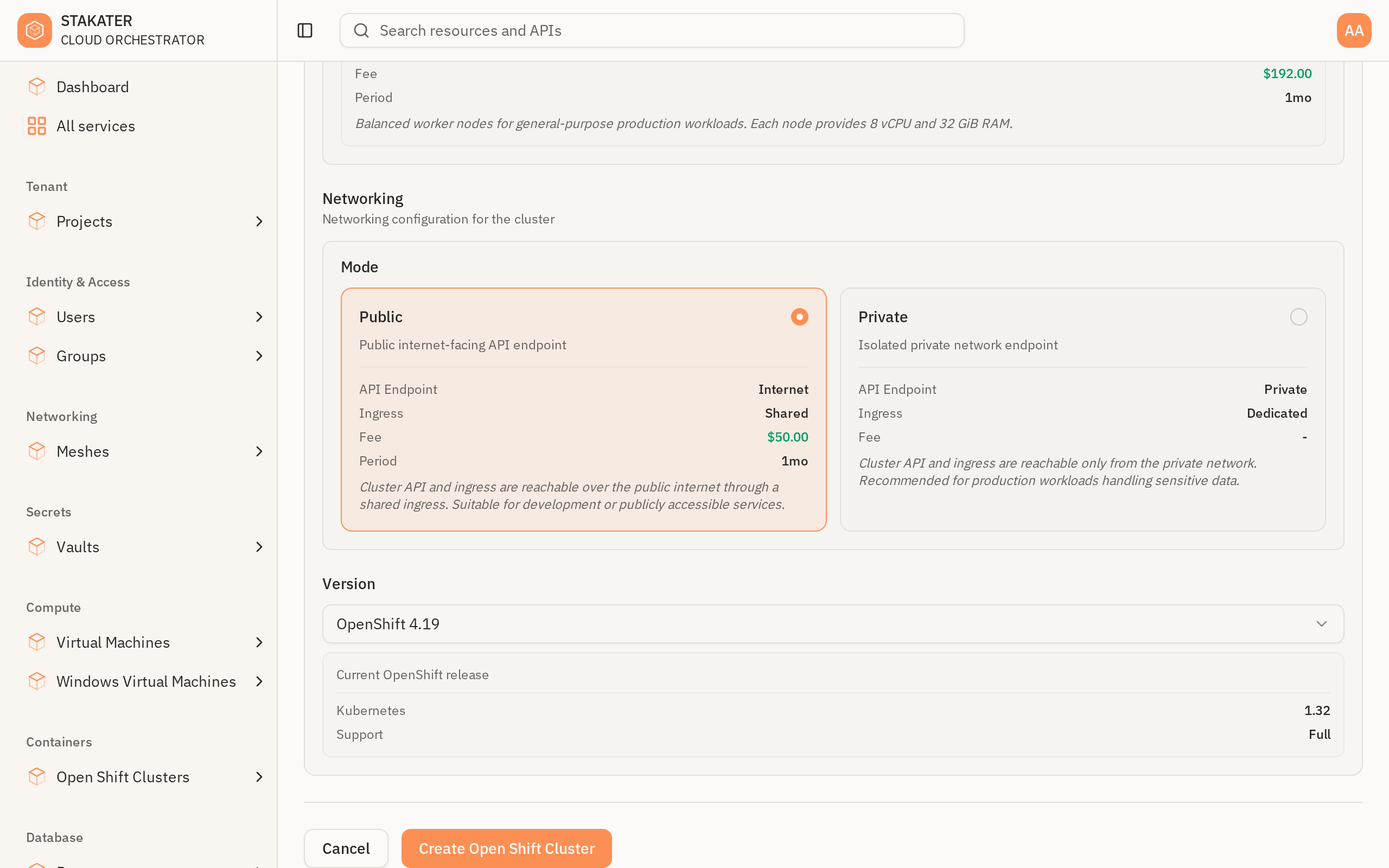
Advanced reveals the rest of the claim further down the form — node pool sizing, the networking Mode as a Public / Private choice with what each one exposes, and the OpenShift Version:
Step 1: Minimal Configuration#
Create a file named cluster.yaml with only the required parameter:
apiVersion: kubernetes.cloud.stakater.com/v1
kind: OpenShiftCluster
metadata:
  name: my-cluster
  namespace: my-tenant
spec:
  parameters:
    clusterName: my-cluster
Required Parameters#
| Parameter | Description |
|---|---|
parameters.clusterName |
Name of the OpenShift cluster (1–63 characters) |
All other parameters fall back to platform-managed defaults — version 4.19, a medium node pool with 3 replicas, and public networking mode.
Step 2: Full Configuration#
For production use, customise the version, node pool size, networking mode, and access groups:
apiVersion: kubernetes.cloud.stakater.com/v1
kind: OpenShiftCluster
metadata:
  name: prod-cluster
  namespace: my-tenant
spec:
  parameters:
    clusterName: prod-cluster
    version: "4.19"
    defaultNodepool:
      enabled: true
      size: large
      replicas: 5
    networking:
      mode: public
    access:
      groups:
        - name: platform-admins
          role: customer-edit
        - name: developers
          role: customer-view
    bootstrap:
      enabled: true
Optional Parameters#
| Parameter | Default | Description |
|---|---|---|
parameters.version |
4.19 |
OpenShift version (4.18, 4.19, or 4.20) |
parameters.defaultNodepool.enabled |
true |
Create a default node pool with the cluster. Set to false to manage node pools separately via OpenShiftNodePool claims. |
parameters.defaultNodepool.size |
medium |
T-shirt size for default node pool nodes: small, medium, large, or xlarge. Each size maps to a predefined CPU, memory, and root volume configuration at the platform level. |
parameters.defaultNodepool.replicas |
3 |
Number of nodes in the default node pool (1–10) |
parameters.networking.mode |
public |
Network access mode for the cluster API and console: public or private |
parameters.access.groups |
— | List of Keycloak group → ClusterRole bindings (see below) |
parameters.bootstrap.enabled |
false |
When true, the hosting cluster auto-installs core add-ons (Crossplane, ArgoCD, ksp-system). Enable for new clusters; leave disabled for clusters that were bootstrapped manually. |
Access Grants#
Each entry under access.groups binds a Keycloak group to a ClusterRole. Members of that group receive the role across customer-eligible namespaces on the cluster (platform namespaces are excluded centrally).
| Field | Description |
|---|---|
name |
Keycloak group name exactly as it appears in the groups claim of the OIDC token. Must be a valid Kubernetes name (RFC 1123 subdomain). |
role |
ClusterRole to bind. Typically, customer-edit or customer-view (managed by the RBAC Permissions Operator), or a built-in such as view, edit, or admin. |
Step 3: Apply the Claim#
kubectl apply -f cluster.yaml
Step 4: Monitor Provisioning#
Cluster provisioning takes several minutes. Monitor progress:
kubectl get openshiftcluster my-cluster -n my-tenant
Check the detailed status and conditions:
kubectl describe openshiftcluster my-cluster -n my-tenant
Once provisioning completes, the claim reports READY=True and SYNCED=True:
NAME         READY   SYNCED   AGE
my-cluster   True    True     15m
For a more granular view, read status.phase directly. It moves through Initializing → RegistrationPending → Ready:
kubectl get openshiftcluster my-cluster -n my-tenant -o jsonpath="{.status.phase}"
The cluster's detail page in the console shows the same phase, alongside the console URL and API endpoint that Step 5 reads out of the status.
Step 5: Access the Cluster#
Once the cluster is ready, the claim status exposes the console URL, API endpoint, and bootstrap credentials:
kubectl get openshiftcluster my-cluster -n my-tenant -o jsonpath="{.status.consoleUrl}"
kubectl get openshiftcluster my-cluster -n my-tenant -o jsonpath="{.status.apiEndpoint}"
Bootstrap credentials are available under status.credentials for initial access. After that, users should sign in through the configured Keycloak identity provider using the groups granted via access.groups.
Tip
Contact your platform administrator for the list of validated OpenShift versions and the CPU/memory mappings backing each T-shirt size in your environment.
What's Next?#
- Create a Project - Create projects for teams on the new cluster
- Create an IAM Group - Set up group-based access to the cluster
- Provision a Virtual Machine - Deploy VMs alongside your cluster