How to Create an IAM Group#
Learn how to create a group in your organisation's identity provider and manage its members via a Project claim.
Maria, an organisation administrator at ACME Corp, wants to create a group for her engineering team so she can assign project access to all members at once rather than individually.
Prerequisites#
- Access to your organisation's project
- The
group.iam.cloud.stakater.comAPI available kubectlconfigured with your organisation project kubeconfig- Sufficient permissions to create
Groupresources in your project
What Gets Created#
When you create a Group claim, the platform provisions:
- An organisation group in your organisation's IdP at the specified path
- Group memberships if
membersare provided (adds existing organisation users to the group)
In the Console#
Groups sit next to Users under Identity & Access. The create form asks for the project the group belongs to, then the same name and path as the claim:
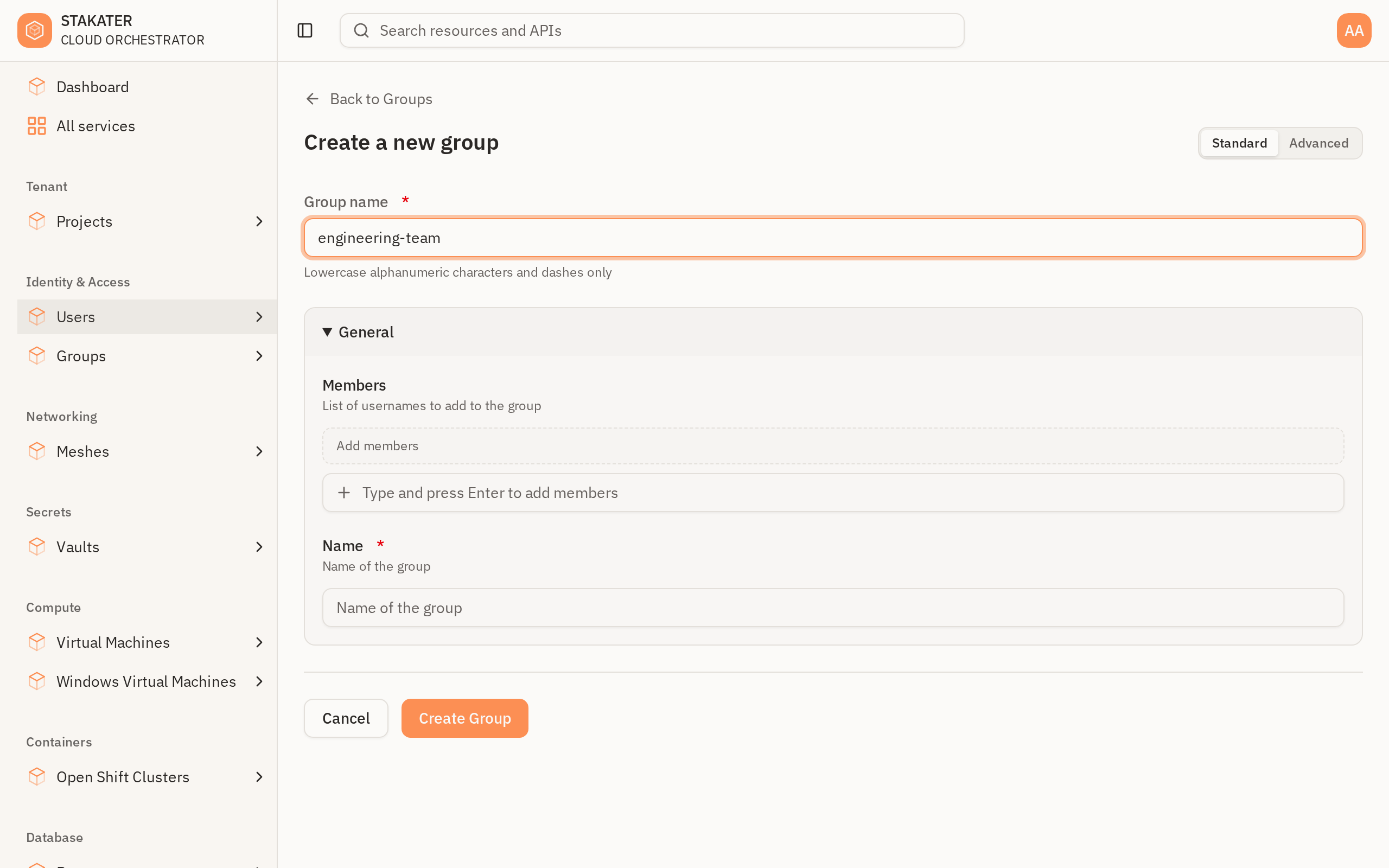
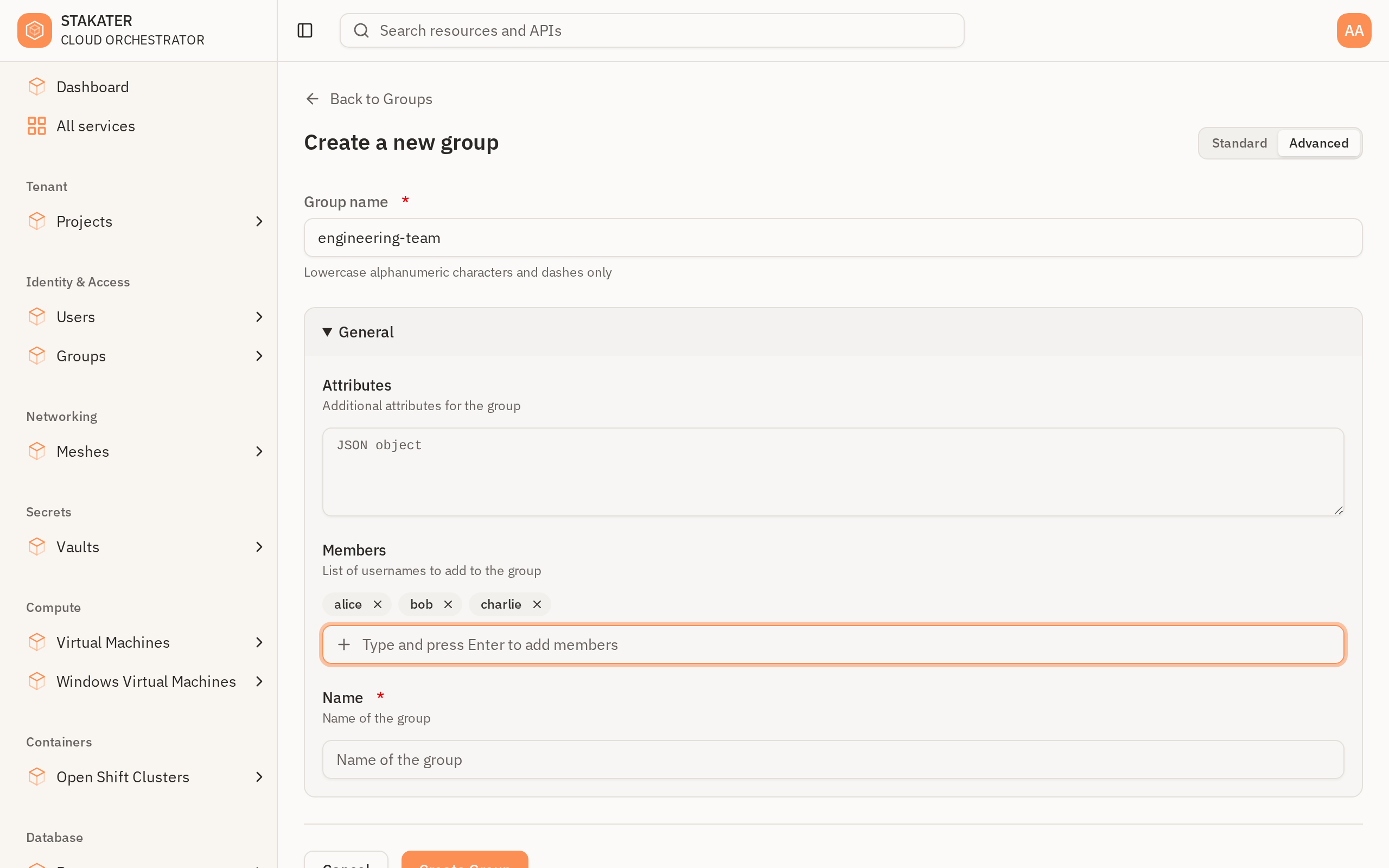
Members are added one at a time: type a username in the Members field and press Enter to commit it. A value left as draft text is not part of the group. If the field is not on the form, switch it to Advanced — members are optional, so Standard mode may hide them:
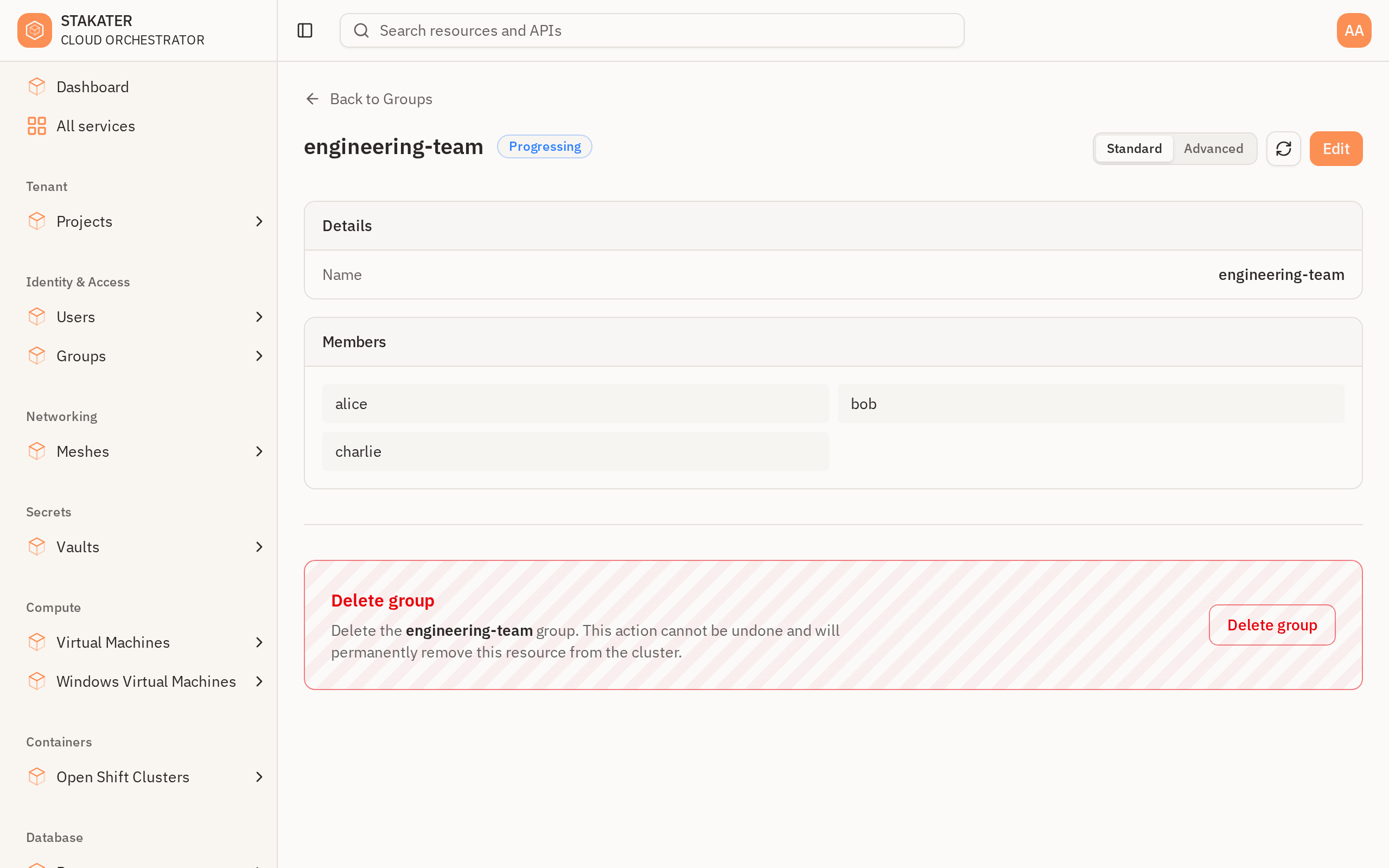
The group's detail page then shows the memberships the platform actually applied, which is the console equivalent of the status.memberships check in Step 4:
Step 1: Define Your Group Claim#
Create a file named group.yaml:
apiVersion: iam.cloud.stakater.com/v1
kind: Group
metadata:
  name: engineering-team
spec:
  parameters:
    name: engineering-team
    path: /teams/engineering
Required Parameters#
| Parameter | Description |
|---|---|
parameters.name |
Name of the organisation group |
Optional Parameters#
| Parameter | Description |
|---|---|
parameters.path |
Path for the group in the organisation group hierarchy (e.g., /teams/engineering) |
parameters.members |
List of organisation usernames to add to the group |
parameters.attributes |
Additional key-value attributes to set on the group |
Step 2: Add Group Members (Optional)#
To pre-populate the group with existing users, add a members list:
apiVersion: iam.cloud.stakater.com/v1
kind: Group
metadata:
  name: engineering-team
spec:
  parameters:
    name: engineering-team
    path: /teams/engineering
    members:
      - alice
      - bob
      - charlie
Note
Members must already exist as organisation users before they can be added to a group. Create users first using the IAM User guide.
Step 3: Apply the Claim#
kubectl apply -f group.yaml
Step 4: Verify the Group#
Check that the group claim was accepted:
kubectl get group engineering-team
Expected output once ready:
NAME               READY   SYNCED   AGE
engineering-team   True    True     1m
Check membership status:
kubectl get group engineering-team \
  -o jsonpath='{.status.memberships}'
Full Examples#
Minimal Group#
apiVersion: iam.cloud.stakater.com/v1
kind: Group
metadata:
  name: tenant-group
spec:
  parameters:
    name: tenant-group
    path: /tenant-group
    members:
      - user1@tenant.com
      - user2@tenant.com
Group with Hierarchy#
apiVersion: iam.cloud.stakater.com/v1
kind: Group
metadata:
  name: engineering-team
spec:
  parameters:
    name: engineering-team
    path: /teams/engineering
    members:
      - alice
      - bob
      - charlie
Using Groups for Project Access#
Once your group is created, reference it in a Project claim to grant project access:
apiVersion: tenant.cloud.stakater.com/v1
kind: Project
metadata:
  name: my-project
spec:
  parameters:
    name: my-project
    network:
      name: app-network
      cidr: 10.0.0.0/16
    access:
      - role: cluster-admin
        groups:
          - engineering-team
      - role: view
        groups:
          - qa-team
What's Next?#
- Create an IAM User - Create users to add to your groups
- Create a Project - Create a project and assign group access
- Provision a Virtual Machine - Deploy resources for your team