How to Provision a Windows Virtual Machine#
Learn how to provision a Windows virtual machine in your project and connect to it with Remote Desktop (RDP) over your organisation's Mesh.
Emma, a developer at ACME Corp, needs a Windows Server machine to test a legacy .NET application. She doesn't want an RDP port on the internet, so she keeps the VM private, advertises it on her organisation's Mesh, and connects from her laptop.
Prerequisites#
- A Project already created
- The
windowsvirtualmachine.compute.cloud.stakater.comAPI available - A Mesh in your organisation, already Ready, with your laptop enrolled
kubectlconfigured with your project kubeconfig- A Windows installation ISO that you are licensed to use, reachable over HTTP(S) — for example a Windows Server evaluation ISO
- An RDP client (Windows App,
xfreerdp, or the built-in Remote Desktop Connection) - A Vault in your organisation, if you want the platform to generate and store the Administrator password (see Step 3)
What Gets Created#
When you create a WindowsVirtualMachine claim, the platform provisions:
- A virtual machine with an empty root disk, UEFI firmware with Secure Boot, and a virtual TPM
- A copy of the installation ISO attached as a CD-ROM for the first boot
- An unattended Windows installation (unless you supply your own answer file) that enables Remote Desktop and installs the guest drivers
- A Mesh route for the VM, so enrolled devices can reach it on its private address
- With a Vault in your organisation: a randomly generated Administrator password, stored in the Vault
The root disk starts empty — Windows is installed from the ISO you provide, so the VM's flavour records which Windows release you are installing; it does not select a ready-made image.
Step 1: Choose a Size#
Windows VMs use their own size catalogue. Ask your organisation administrator for the sizes available to you; typical values are:
| Instance Type | Profile |
|---|---|
u1.nano |
1 vCPU, 512 Mi |
u1.micro |
1 vCPU, 1 Gi |
u1.small |
1 vCPU, 2 Gi |
o1.small |
2 vCPU, 4 Gi |
o1.medium |
2 vCPU, 8 Gi |
o1.large |
4 vCPU, 16 Gi |
Note
Windows Server with Desktop Experience is slow and cramped below 2 vCPU and 4 Gi. Use o1.small or larger for anything you intend to log in to and work on. An instance type that is not in your catalogue is rejected with an InvalidInstanceType condition on the claim.
Step 2: Choose the Installation Media#
Windows is installed from an ISO, and there are two ways to give the platform one.
Option A — an HTTP URL (simplest). The platform downloads the ISO into a volume dedicated to this VM. Set installationSource.type: http and give the URL and a size at least as large as the ISO.
Option B — a shared media volume. Import the ISO once as a VirtualMachineVolume with role: media, then reference it from as many VMs as you like:
apiVersion: compute.cloud.stakater.com/v1
kind: VirtualMachineVolume
metadata:
  name: win2k25-media
spec:
  parameters:
    role: media
    storageSize: small
    source:
      type: http
      http:
        url: https://example.org/windows-server-2025.iso
kubectl apply -f media.yaml
kubectl get virtualmachinevolume win2k25-media
Warning
Microsoft's installation media normally show "Press any key to boot from CD or DVD…" for a few seconds. A VM nobody is watching times out of that prompt and sits at an idle firmware screen even though the claim reports Running. For a hands-off install, use media that has the prompt removed. If you use an unmodified ISO, open the VM console as soon as the VM starts and press a key (see Troubleshooting).
Step 3: Define a WindowsVirtualMachine Claim#
Create a file named windows-vm.yaml:
apiVersion: compute.cloud.stakater.com/v1
kind: WindowsVirtualMachine
metadata:
  name: my-windows-vm
spec:
  parameters:
    flavour: win2k25
    instanceType: o1.medium
    storageSize: medium
    connection: private
    meshRoute:
      enabled: true
    installationSource:
      type: volume
      name: win2k25-media
You can also create the VM from the SCO console: open Windows Virtual Machines in the sidebar, choose Create, and fill in the same fields.
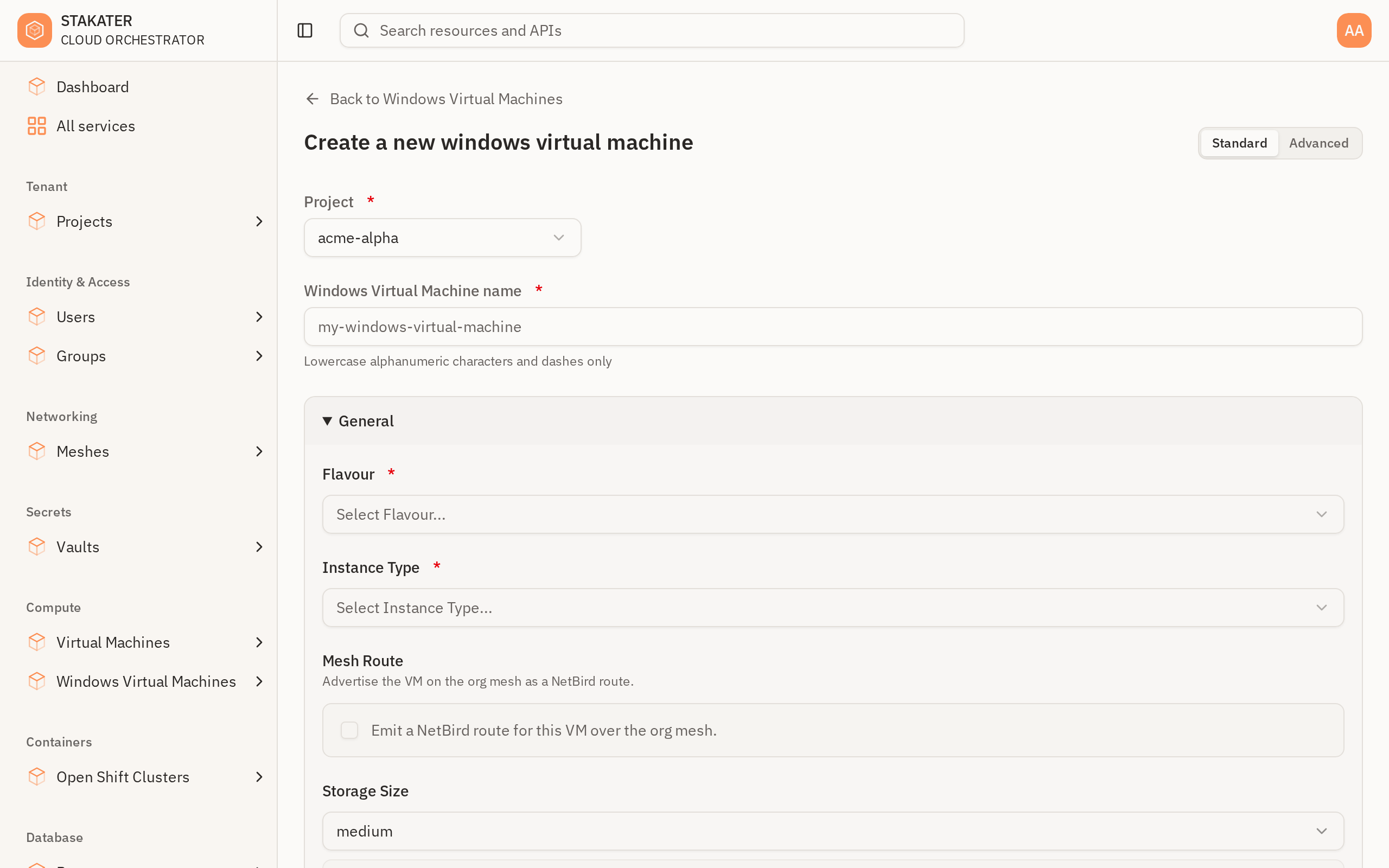
To download the ISO for this VM alone instead of using a shared volume, replace installationSource with:
    installationSource:
      type: http
      url: https://example.org/windows-server-2025.iso
      size: 10Gi
Parameters#
| Parameter | Default | Description |
|---|---|---|
parameters.flavour |
— (required) | Windows release being installed: win2k19, win2k22 or win2k25 |
parameters.instanceType |
— (required) | VM size from your organisation's Windows catalogue (see Step 1) |
parameters.storageSize |
medium |
Root disk size from your organisation's catalogue |
parameters.connection |
private |
private creates no external endpoint; public creates an external RDP endpoint on port 3389 |
parameters.meshRoute.enabled |
false |
Advertise the VM on your organisation's Mesh so enrolled devices can reach it |
parameters.installationSource.type |
volume |
volume attaches a media VirtualMachineVolume; http downloads an ISO for this VM |
parameters.installationSource.name |
— | Name of the media volume (type: volume) |
parameters.installationSource.url |
— | ISO URL (type: http) |
parameters.installationSource.size |
— | Storage for the downloaded ISO (type: http); at least the ISO's size |
parameters.sysprep |
— | Your own Windows answer files — see Use Your Own Answer File |
parameters.additionalDisks |
— | Extra disks to attach: persistent (an existing VirtualMachineVolume), ephemeral scratch, or read-only container disks |
Tip
Prefer connection: private with meshRoute.enabled: true. Remote Desktop is a frequent target for attacks; connection: public exposes it to the internet and should only be used for short-lived machines you will harden yourself.
The Default Installation#
If you attach installation media and do not supply a sysprep of your own, the platform installs Windows without any prompts:
- Installs Standard (Desktop Experience)
- Enables Remote Desktop with Network Level Authentication, and opens its firewall rule
- Installs the
virtioguest drivers and guest agent (the VM's network adapter needs them) - Sets a random password for the local
Administratoraccount
When your organisation has a Vault, the password is stored there and the claim tells you where (Step 6). Without a Vault the VM still installs, but nobody is given the password — in that case supply your own answer file.
Step 4: Apply the Claim#
kubectl apply -f windows-vm.yaml
Step 5: Wait for the Installation#
kubectl get windowsvirtualmachine my-windows-vm
NAME             SYNCED   READY   AGE
my-windows-vm    True     True    9m
In the console, the Windows Virtual Machines list shows the same status:
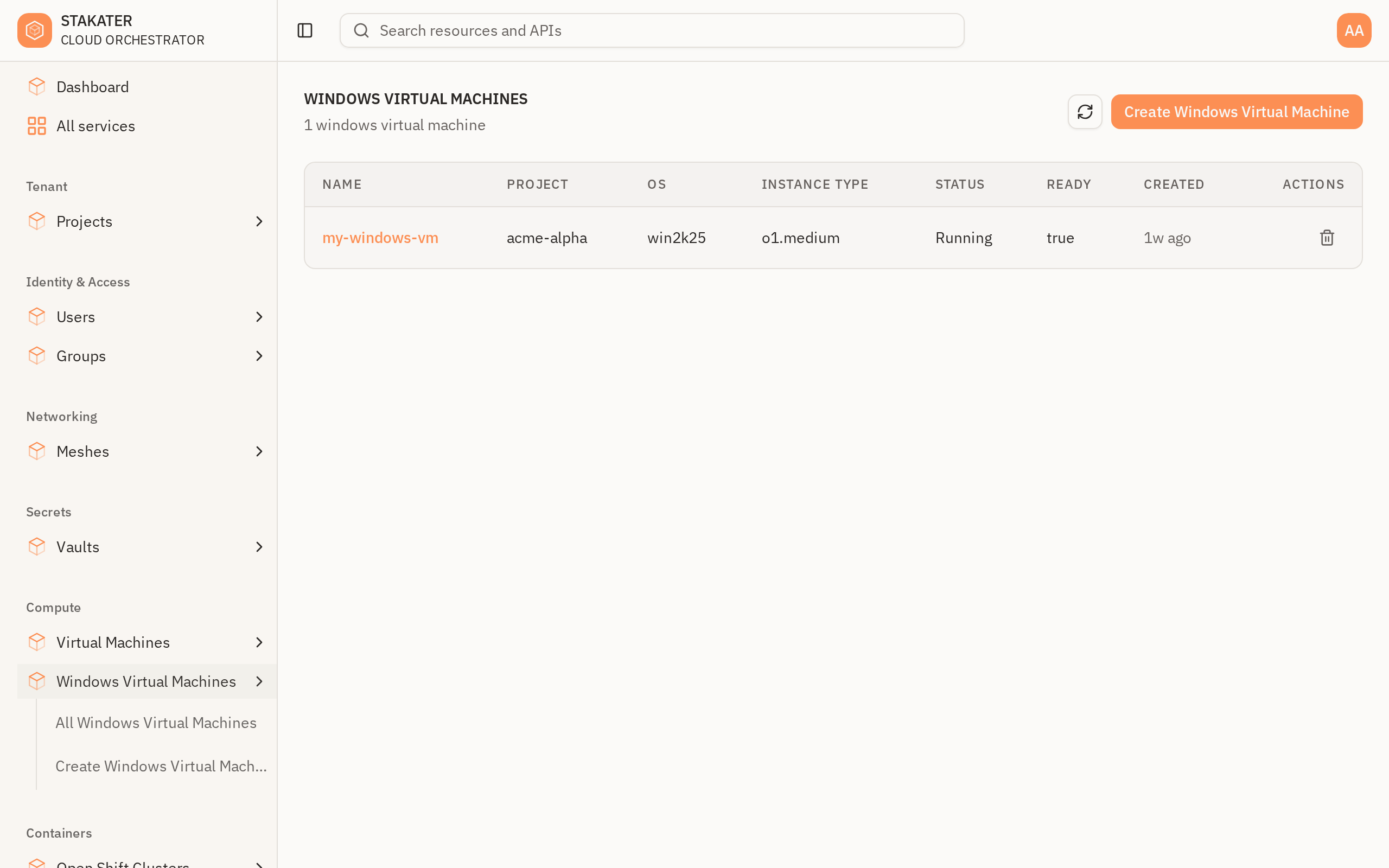
READY: True and a Running VM status mean only that the virtual machine has started — not that Windows has finished installing. Watch the disks and the guest address instead:
kubectl get windowsvirtualmachine my-windows-vm \
  -o jsonpath='{.status.vm.printableStatus}{"\n"}{.status.vm.dataVolumes}{"\n"}{.status.vm.internalIP}{"\n"}'
- The ISO downloads first (the data volume phase moves through
ImportInProgresstoSucceeded). - The VM boots the installer and installs Windows. Allow roughly 10–15 minutes on
o1.smallor larger. - When Windows has installed the guest tools and reports its address,
status.vm.internalIPis populated. That is the address you connect to.
Note
status.vm.internalIP stays empty until the guest reports an address, and it is never set when meshRoute.enabled is false. An empty value after 20 minutes means Windows has not finished installing — see Troubleshooting.
Step 6: Get the Administrator Password#
With the default installation the platform generates the Administrator password and stores it in your organisation's Vault, in your project's folder. The claim status names the exact path:
kubectl get windowsvirtualmachine my-windows-vm -o jsonpath='{.status.adminCredentials}'
{"delivered":true,"message":"Stored in your organization's OpenBao","secretPath":"stakater/projects/acme-my-project/vms/my-windows-vm","secretStore":"acme-bao","username":"Administrator"}
Read the path from left to right:
| Part | Meaning |
|---|---|
stakater |
The secrets engine (mount) that holds your organisation's secrets |
projects/acme-my-project |
Your project's folder, named <organisation>-<project> |
vms/my-windows-vm |
The entry for this VM. It holds the properties username and password |
Wait for delivered to be true, then read the entry. You need to sign in to the Vault with one of your project's roles first. Any role that can see the project folder works, including the read-only ones (see Project access).
-
Find the Vault address and your role:
kubectl get project my-project -o jsonpath='{.status.openbao}'{"available":true,"address":"https://bao.acme.mesh.example.com","secretPath":"stakater/projects/acme-my-project/","roles":["acme-my-project-rw"],"message":"Log in to your organization's OpenBao with OIDC and one of the listed roles"} -
Read the password in the web UI or the CLI.
Web UI: open the address, choose method OIDC, enter your role in Role, and sign in. Then open Secrets engines →
stakater→projects→acme-my-project→vms→my-windows-vmand revealpassword.CLI:
export BAO_ADDR=https://bao.acme.mesh.example.com
bao login -method=oidc role=acme-my-project-rw
bao kv get -mount=stakater projects/acme-my-project/vms/my-windows-vm
bao kv get -mount=stakater -field=password projects/acme-my-project/vms/my-windows-vm
Note
Signing in without a role succeeds but shows you nothing in your project's folder. A sign-in lasts one hour; sign in again with the role if the Vault stops showing the folder.
If delivered is false, the message field says why — most often, the organisation has no Vault.
Step 7: Connect with Remote Desktop#
-
Make sure your laptop is connected to the Mesh:
netbird status -
Get the VM's address:
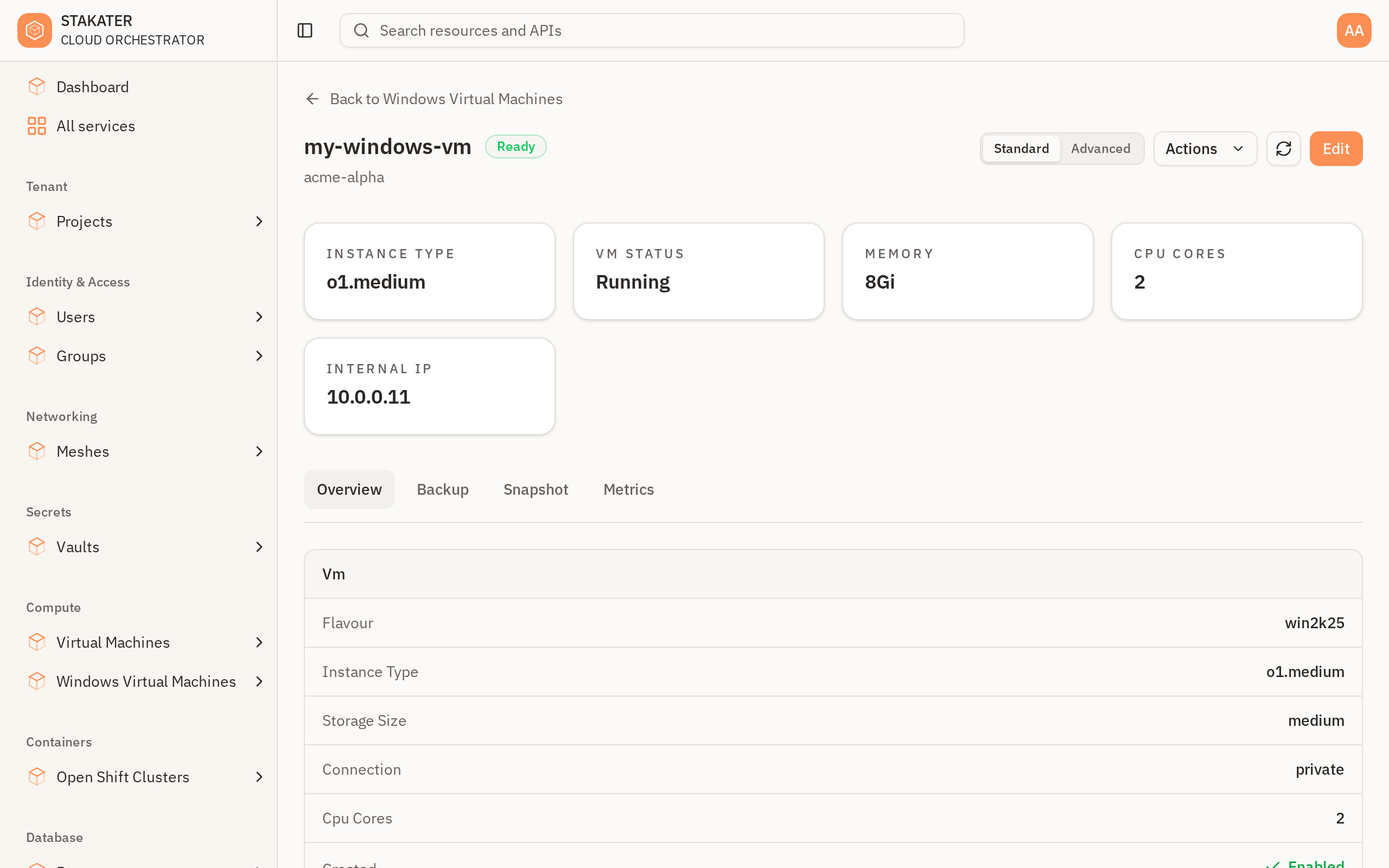
kubectl get windowsvirtualmachine my-windows-vm -o jsonpath='{.status.vm.internalIP}'The same address appears as Internal IP on the VM's detail page in the console:
-
Check that the RDP port is reachable:
nc -vz <internal-ip> 3389 -
Open your RDP client, connect to
<internal-ip>, and sign in asAdministratorwith the password from Step 6.
Note
Don't use ping to test the connection. Windows Firewall blocks ping by default, so it times out even when RDP works. Test port 3389 instead.
RDP over the Mesh is available to members of the organisation groups that have an administrative or compute role on the project. If nc cannot connect while the VM reports an address, ask your organisation administrator to check that you are in one of those groups.
Use Your Own Answer File#
To control the installation yourself — a different edition, a product key, a domain join, or a fixed password — supply Windows answer files in sysprep instead of relying on the default:
spec:
  parameters:
    sysprep:
      autounattend: <base64-encoded-autounattend.xml>
Encode the file with:
base64 -w 0 autounattend.xml
Your answer file must itself enable Remote Desktop, install the virtio-win guest drivers, and set the Administrator password. The platform does not add any of these for you when you supply your own.
| Field | Description |
|---|---|
sysprep.autounattend |
Base64-encoded autounattend.xml, used during Windows Setup |
sysprep.unattend |
Base64-encoded unattend.xml, used after installation |
sysprep.secretPath |
Path to an answer file stored in your organisation's Vault, under your project's folder (requires a Vault). See Keep the Answer File in Your Vault |
autounattend/unattend and secretPath are mutually exclusive.
Warning
Anything you put in sysprep.autounattend or sysprep.unattend is stored in the claim and is readable by anyone who can read the claim. Base64 is an encoding, not encryption. An answer file usually contains an Administrator password or product key — if it does, store it in your Vault and use sysprep.secretPath instead — see Keep the Answer File in Your Vault.
Keep the Answer File in Your Vault#
Use this route whenever the answer file holds a password or a product key. The file lives in your project's folder in the Vault, and the claim names only its location. The file never appears in the claim.
Where it goes. The claim's sysprep.secretPath is always relative to your project folder:
| You write in the claim | The platform reads |
|---|---|
secretPath: win/standard |
stakater/projects/acme-my-project/win/standard |
- The mount is
stakaterand the project folder isprojects/<organisation>-<project>. The project page shows it as the Vault folder. - The entry must have a property named exactly
autounattend.xml. Its value is the answer file as plain XML text, not base64. An entry without that property makes the claim report that the file did not load. - A path may use letters, digits,
.,_and-inside each segment, separated by/. It cannot start with/or contain..or empty segments, and it can be at most 256 characters. A path outside your project folder cannot be named. - This route requires a Vault on your organisation.
1. Prepare the answer file. Start from the example below and save it as autounattend.xml. Replace __ADMIN_PASSWORD__ in both places with the password you want for the local Administrator account. Check the edition index and drive letters against your installation media.
2. Sign in to the Vault with a project role that can write, as in Step 6. A read-only role cannot create the entry.
3. Store the file at projects/acme-my-project/win/standard with the key autounattend.xml.
Web UI: open Secrets engines → stakater → Create secret. Set Path for this secret to projects/acme-my-project/win/standard, add the key autounattend.xml, paste the whole file as the value, and save. If your project page shows an Add a secret link, it opens this form with the project folder already filled in.
CLI:
export BAO_ADDR=https://bao.acme.mesh.example.com
bao login -method=oidc role=acme-my-project-rw
bao kv put -mount=stakater projects/acme-my-project/win/standard autounattend.xml=@autounattend.xml
4. Point the claim at it. Remove any sysprep.autounattend or sysprep.unattend. They are mutually exclusive with secretPath.
spec:
  parameters:
    sysprep:
      secretPath: win/standard
5. Check that it loaded. The claim status reports where the answer file came from and whether it arrived:
kubectl get windowsvirtualmachine my-windows-vm -o jsonpath='{.status.sysprep}'
{"message":"Answer file loaded from your organization's OpenBao","ready":true,"secretPath":"stakater/projects/acme-my-project/win/standard","secretStore":"acme-bao","source":"openbao"}
message |
Meaning |
|---|---|
Answer file loaded from your organization's OpenBao |
The file arrived and Windows Setup will use it |
Loading the answer file from your organization's OpenBao |
Still being copied; check again shortly |
Not loaded: sysprep.secretPath must be a relative path such as win/standard |
The path is not valid; fix it as described above |
Not loaded: your organization's OpenBao is not available… |
Your organisation has no Vault yet, or it is still starting. Create a Vault, or supply the file inline with sysprep.autounattend |
Any other Not loaded: … message |
The Vault entry could not be read, most often because the autounattend.xml property is missing or the path is wrong |
Note
The VM reads the answer file only while Windows Setup runs. The platform refreshes the copy hourly, but editing the entry after the VM has installed changes nothing inside Windows. A VM keeps what it installed, so use the updated entry for new VMs.
Example answer file#
This answer file installs Windows Server 2025 on a blank disk, loads the virtio drivers, sets the Administrator password, enables Remote Desktop with Network Level Authentication, and installs the virtio guest tools and the guest agent. Adapt it to your media:
<Value>2</Value>under/IMAGE/INDEXselects an edition in the installation media. On a standard Windows Server 2025 ISO,2is usually Standard with Desktop Experience and4is usuallyDatacenterwith Desktop Experience, but check your own media. List the indexes of your media withdism /Get-WimInfo /WimFile:install.wim.- The
DriverPathsentries search drivesD:toG:for thevirtiostorage and network drivers in the2k25folder. Use the folder that matches your Windows version, for example2k22. You need the storage entries only if the VM's disk uses avirtiobus. - To use a product key, add
<Key>inside the<ProductKey>element of theMicrosoft-Windows-Setupcomponent.
<?xml version="1.0" encoding="utf-8"?>
<unattend xmlns="urn:schemas-microsoft-com:unattend">
  <settings pass="windowsPE">
    <component xmlns:wcm="http://schemas.microsoft.com/WMIConfig/2002/State" name="Microsoft-Windows-International-Core-WinPE" processorArchitecture="amd64" publicKeyToken="31bf3856ad364e35" language="neutral" versionScope="nonSxS">
      <SetupUILanguage>
        <UILanguage>en-US</UILanguage>
      </SetupUILanguage>
      <InputLocale>en-US</InputLocale>
      <SystemLocale>en-US</SystemLocale>
      <UILanguage>en-US</UILanguage>
      <UserLocale>en-US</UserLocale>
    </component>
    <component xmlns:wcm="http://schemas.microsoft.com/WMIConfig/2002/State" name="Microsoft-Windows-PnpCustomizationsWinPE" processorArchitecture="amd64" publicKeyToken="31bf3856ad364e35" language="neutral" versionScope="nonSxS">
      <DriverPaths>
        <PathAndCredentials wcm:action="add" wcm:keyValue="1">
          <Path>D:\viostor\2k25\amd64</Path>
        </PathAndCredentials>
        <PathAndCredentials wcm:action="add" wcm:keyValue="2">
          <Path>E:\viostor\2k25\amd64</Path>
        </PathAndCredentials>
        <PathAndCredentials wcm:action="add" wcm:keyValue="3">
          <Path>F:\viostor\2k25\amd64</Path>
        </PathAndCredentials>
        <PathAndCredentials wcm:action="add" wcm:keyValue="4">
          <Path>G:\viostor\2k25\amd64</Path>
        </PathAndCredentials>
        <PathAndCredentials wcm:action="add" wcm:keyValue="5">
          <Path>D:\vioscsi\2k25\amd64</Path>
        </PathAndCredentials>
        <PathAndCredentials wcm:action="add" wcm:keyValue="6">
          <Path>E:\vioscsi\2k25\amd64</Path>
        </PathAndCredentials>
        <PathAndCredentials wcm:action="add" wcm:keyValue="7">
          <Path>F:\vioscsi\2k25\amd64</Path>
        </PathAndCredentials>
        <PathAndCredentials wcm:action="add" wcm:keyValue="8">
          <Path>G:\vioscsi\2k25\amd64</Path>
        </PathAndCredentials>
        <PathAndCredentials wcm:action="add" wcm:keyValue="9">
          <Path>D:\NetKVM\2k25\amd64</Path>
        </PathAndCredentials>
        <PathAndCredentials wcm:action="add" wcm:keyValue="10">
          <Path>E:\NetKVM\2k25\amd64</Path>
        </PathAndCredentials>
        <PathAndCredentials wcm:action="add" wcm:keyValue="11">
          <Path>F:\NetKVM\2k25\amd64</Path>
        </PathAndCredentials>
        <PathAndCredentials wcm:action="add" wcm:keyValue="12">
          <Path>G:\NetKVM\2k25\amd64</Path>
        </PathAndCredentials>
      </DriverPaths>
    </component>
    <component xmlns:wcm="http://schemas.microsoft.com/WMIConfig/2002/State" name="Microsoft-Windows-Setup" processorArchitecture="amd64" publicKeyToken="31bf3856ad364e35" language="neutral" versionScope="nonSxS">
      <DiskConfiguration>
        <Disk wcm:action="add">
          <DiskID>0</DiskID>
          <WillWipeDisk>true</WillWipeDisk>
          <CreatePartitions>
            <CreatePartition wcm:action="add">
              <Order>1</Order>
              <Type>EFI</Type>
              <Size>100</Size>
            </CreatePartition>
            <CreatePartition wcm:action="add">
              <Order>2</Order>
              <Type>MSR</Type>
              <Size>16</Size>
            </CreatePartition>
            <CreatePartition wcm:action="add">
              <Order>3</Order>
              <Type>Primary</Type>
              <Extend>true</Extend>
            </CreatePartition>
          </CreatePartitions>
          <ModifyPartitions>
            <ModifyPartition wcm:action="add">
              <Order>1</Order>
              <PartitionID>1</PartitionID>
              <Format>FAT32</Format>
              <Label>System</Label>
            </ModifyPartition>
            <ModifyPartition wcm:action="add">
              <Order>2</Order>
              <PartitionID>2</PartitionID>
            </ModifyPartition>
            <ModifyPartition wcm:action="add">
              <Order>3</Order>
              <PartitionID>3</PartitionID>
              <Format>NTFS</Format>
              <Label>Windows</Label>
              <Letter>C</Letter>
            </ModifyPartition>
          </ModifyPartitions>
        </Disk>
      </DiskConfiguration>
      <ImageInstall>
        <OSImage>
          <InstallFrom>
            <MetaData wcm:action="add">
              <Key>/IMAGE/INDEX</Key>
              <Value>2</Value>
            </MetaData>
          </InstallFrom>
          <InstallTo>
            <DiskID>0</DiskID>
            <PartitionID>3</PartitionID>
          </InstallTo>
        </OSImage>
      </ImageInstall>
      <UserData>
        <AcceptEula>true</AcceptEula>
      </UserData>
    </component>
  </settings>
  <settings pass="oobeSystem">
    <component xmlns:wcm="http://schemas.microsoft.com/WMIConfig/2002/State" name="Microsoft-Windows-Shell-Setup" processorArchitecture="amd64" publicKeyToken="31bf3856ad364e35" language="neutral" versionScope="nonSxS">
      <UserAccounts>
        <AdministratorPassword>
          <Value>__ADMIN_PASSWORD__</Value>
          <PlainText>true</PlainText>
        </AdministratorPassword>
      </UserAccounts>
      <AutoLogon>
        <Enabled>true</Enabled>
        <LogonCount>1</LogonCount>
        <Username>Administrator</Username>
        <Password>
          <Value>__ADMIN_PASSWORD__</Value>
          <PlainText>true</PlainText>
        </Password>
      </AutoLogon>
      <OOBE>
        <HideEULAPage>true</HideEULAPage>
        <HideLocalAccountScreen>true</HideLocalAccountScreen>
        <HideOnlineAccountScreens>true</HideOnlineAccountScreens>
        <HideWirelessSetupInOOBE>true</HideWirelessSetupInOOBE>
        <ProtectYourPC>3</ProtectYourPC>
        <SkipMachineOOBE>true</SkipMachineOOBE>
        <SkipUserOOBE>true</SkipUserOOBE>
      </OOBE>
      <FirstLogonCommands>
        <SynchronousCommand wcm:action="add">
          <Order>1</Order>
          <Description>virtio guest tools and agent</Description>
          <CommandLine>powershell -NoProfile -ExecutionPolicy Bypass -Command "foreach($d in 'D','E','F','G'){$m=$d+':\virtio-win-gt-x64.msi'; if(Test-Path $m){Start-Process msiexec.exe -ArgumentList '/i',$m,'/qn','/norestart' -Wait}}; foreach($d in 'D','E','F','G'){$m=$d+':\guest-agent\qemu-ga-x86_64.msi'; if(Test-Path $m){Start-Process msiexec.exe -ArgumentList '/i',$m,'/qn','/norestart' -Wait}}"</CommandLine>
        </SynchronousCommand>
        <SynchronousCommand wcm:action="add">
          <Order>2</Order>
          <Description>enable RDP</Description>
          <CommandLine>reg add "HKLM\SYSTEM\CurrentControlSet\Control\Terminal Server" /v fDenyTSConnections /t REG_DWORD /d 0 /f</CommandLine>
        </SynchronousCommand>
        <SynchronousCommand wcm:action="add">
          <Order>3</Order>
          <Description>RDP firewall</Description>
          <CommandLine>netsh advfirewall firewall set rule group="remote desktop" new enable=Yes</CommandLine>
        </SynchronousCommand>
        <SynchronousCommand wcm:action="add">
          <Order>4</Order>
          <Description>NLA on</Description>
          <CommandLine>reg add "HKLM\SYSTEM\CurrentControlSet\Control\Terminal Server\WinStations\RDP-Tcp" /v UserAuthentication /t REG_DWORD /d 1 /f</CommandLine>
        </SynchronousCommand>
        <SynchronousCommand wcm:action="add">
          <Order>5</Order>
          <Description>Remove the AutoLogon password</Description>
          <CommandLine>reg delete "HKLM\SOFTWARE\Microsoft\Windows NT\CurrentVersion\Winlogon" /v DefaultPassword /f</CommandLine>
        </SynchronousCommand>
      </FirstLogonCommands>
    </component>
  </settings>
</unattend>
Licensing#
The claim has no licence-key field. Evaluation media needs no key (it is time-limited). For retail or volume-licensed media, put the key in your own answer file (<ProductKey> in the Microsoft-Windows-Setup component) and keep that file in your Vault or activate after installation with slmgr. Inside the VM, slmgr /dli shows the current licence state.
Troubleshooting#
| Symptom | Likely cause | Fix |
|---|---|---|
Claim Running for 20+ minutes, status.vm.internalIP empty |
The VM sat at "Press any key to boot from CD or DVD" and never started Windows Setup | Open the VM console in the SCO console, restart the VM and press a key at the prompt — or use installation media with the prompt removed |
InvalidInstanceType condition |
The size is not in your organisation's Windows catalogue | Pick one of the Windows sizes in Step 1, or ask your administrator |
status.adminCredentials.delivered is false |
Your organisation has no Vault | Create a Vault, or supply your own answer file |
status.sysprep.ready is false |
The answer file in your Vault did not load | Read status.sysprep.message and see Keep the Answer File in Your Vault |
| Setup ignores your answer file or stops at a prompt | The XML is invalid, the edition index does not exist on your media, or the value was stored base64-encoded | Validate the XML, check /IMAGE/INDEX, and store the plain XML text |
nc to port 3389 times out, internalIP is set |
Your laptop is not on the Mesh, or you are not in a group with RDP access to the project | Run netbird status; ask your organisation administrator to check your group membership |
| RDP connects, then fails to sign in | Wrong password or user | Use Administrator and the password from the Vault; with your own answer file, use the one you set |
ping to the VM times out |
Windows Firewall blocks ping | Expected — test port 3389 instead |
Full Example#
A private Windows Server 2025 VM, reachable over the Mesh, installed unattended from a shared media volume:
apiVersion: compute.cloud.stakater.com/v1
kind: VirtualMachineVolume
metadata:
  name: win2k25-media
spec:
  parameters:
    role: media
    storageSize: small
    source:
      type: http
      http:
        url: https://example.org/windows-server-2025.iso
---
apiVersion: compute.cloud.stakater.com/v1
kind: WindowsVirtualMachine
metadata:
  name: my-windows-vm
spec:
  parameters:
    flavour: win2k25
    instanceType: o1.medium
    storageSize: medium
    connection: private
    meshRoute:
      enabled: true
    installationSource:
      type: volume
      name: win2k25-media
What's Next?#
- Provision a Linux Virtual Machine - Provision a Linux VM and connect over SSH
- Create a Mesh - Set up the private network used to reach the VM
- Create a Vault - Store the generated Administrator password and your own answer files
- Vault API reference - Project roles and the project folder
- One Identity Across Your Organisation - Mesh enrolment caveats