Package and push your chart to Harbor#
By the end of this guide, your Helm chart will be packaged and available in Harbor's Helm registry, ready to be referenced from your apps GitOps repository.
The chart lives in a deploy/ folder at the root of your application repository. It uses the Stakater Application Chart as a dependency to define all Kubernetes resources (Deployment, Service, Route, etc.) through a single values.yaml.
Replace the following placeholders with your own values throughout this guide:
| Placeholder | Description |
|---|---|
APP_NAME |
Your application name |
CHART_VERSION |
The chart version to publish (e.g. 1.0.0) |
HARBOR_HELM_REPO_URL |
The Helm registry URL from Harbor (find it via Forecastle) |
HARBOR_USERNAME |
Your Harbor username |
HARBOR_PASSWORD |
Your Harbor password |
1. Set up the chart structure#
If your deploy/ folder does not exist yet, create it with the following two files.
deploy/Chart.yaml:
apiVersion: v2
name: APP_NAME
description: A Helm chart for Kubernetes
dependencies:
  - name: application
    version: 2.1.13
    repository: https://stakater.github.io/stakater-charts
type: application
version: CHART_VERSION
deploy/values.yaml — minimal example with a Deployment and Route:
application:
  applicationName: APP_NAME
  deployment:
    imagePullSecrets: nexus-docker-config-forked
    image:
      repository: APP_NAME
      tag: CHART_VERSION
  route:
    enabled: true
    port:
      targetPort: http
All available configuration options are documented in the Application Chart values reference.
2. Download chart dependencies#
3. Find your Harbor Helm registry URL#
Open Forecastle from your cluster and locate the Harbor tile. Derive the Helm registry URL:
- Add
-helmafter theharborportion of the hostname - Append
/repository/helm-charts/
For example: https://harbor-helm-stakater-harbor.apps.clustername.example.com/repository/helm-charts/
4. Package the chart#
This creates APP_NAME-CHART_VERSION.tgz in the current directory.
5. Push the chart to Harbor#
curl -u "HARBOR_USERNAME":"HARBOR_PASSWORD" HARBOR_HELM_REPO_URL \
  --upload-file "APP_NAME-CHART_VERSION.tgz"
6. Verify#
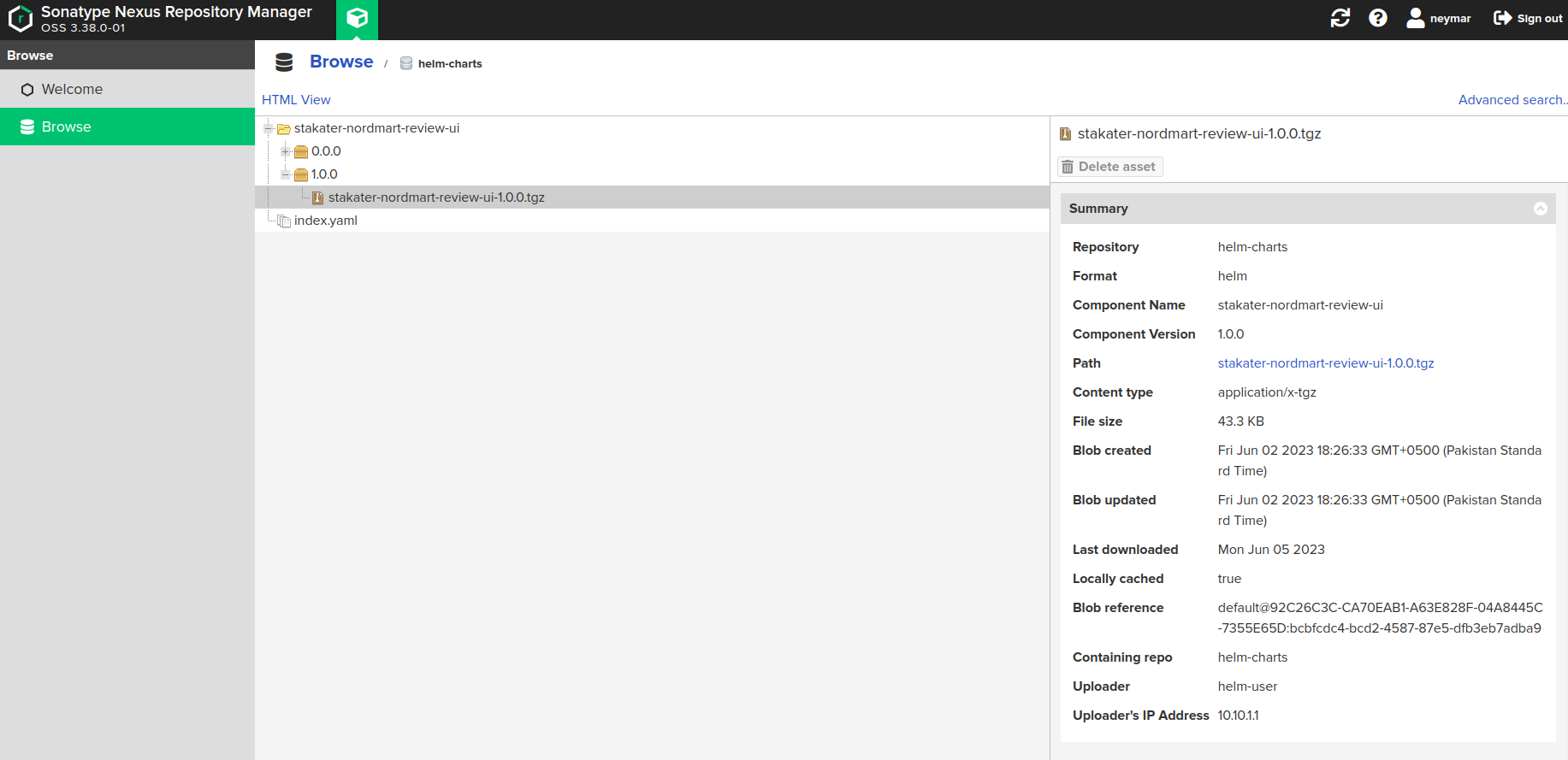
Open the Harbor UI from Forecastle. Select Browse, then click Helm Charts to confirm your chart is listed with the expected version.
With your chart in Harbor, continue to Deploy a new version via GitOps to release it to your cluster.