Connect Azure AD#
This page explains how to register an Azure AD application and share the credentials with Stakater Support so that users in your Azure AD tenant can log into KubeStack+.
Azure AD requires two separate app registrations: one for identity (this page) and one for group synchronization. Complete the identity registration first.
1. Register an application in Azure AD#
- Log in to the Azure Portal.
- Open the Azure Active Directory service.
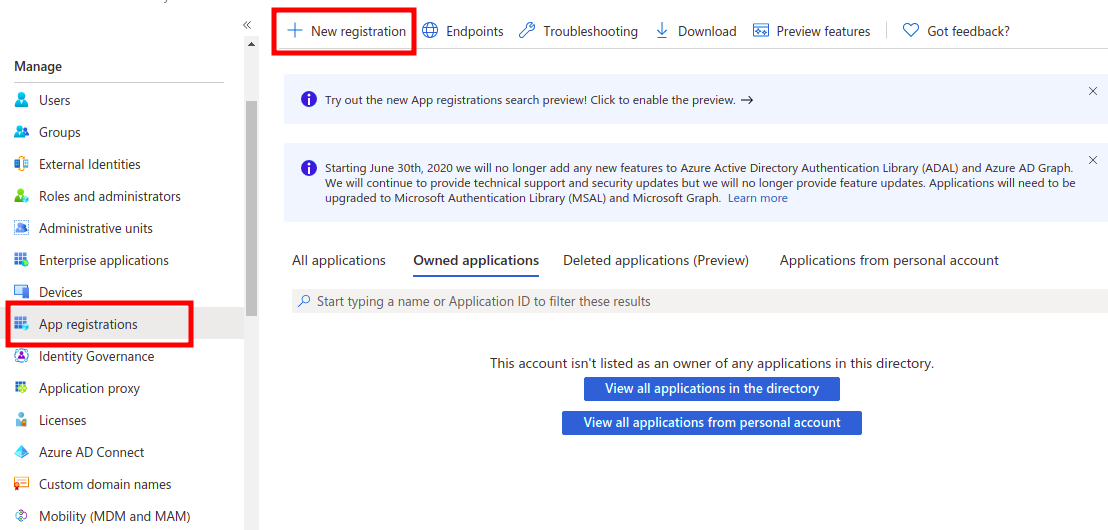
- Under Manage, click App registrations, then New registration.
- Enter
kubestackplusas the name. - Under Redirect URI, select
Weband enter the URI provided by Stakater Support. - Click Register.
2. Add API permissions#
Go to API permissions for the newly created app and add the following Microsoft Graph permissions:
User.Readopenidprofileemail
3. Create a client secret#
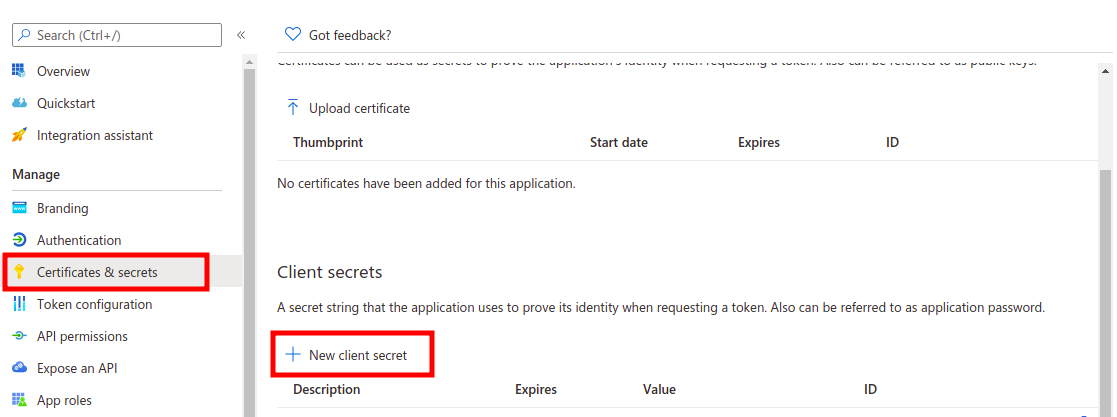
- Click Certificates & secrets in the left sidebar.
- Click New client secret.
- Enter
kubestackplus-oidcas the description, choose an expiry, and click Add. - Copy the Value of the new secret immediately — it will not be shown again.
4. Share the credentials with Stakater Support#
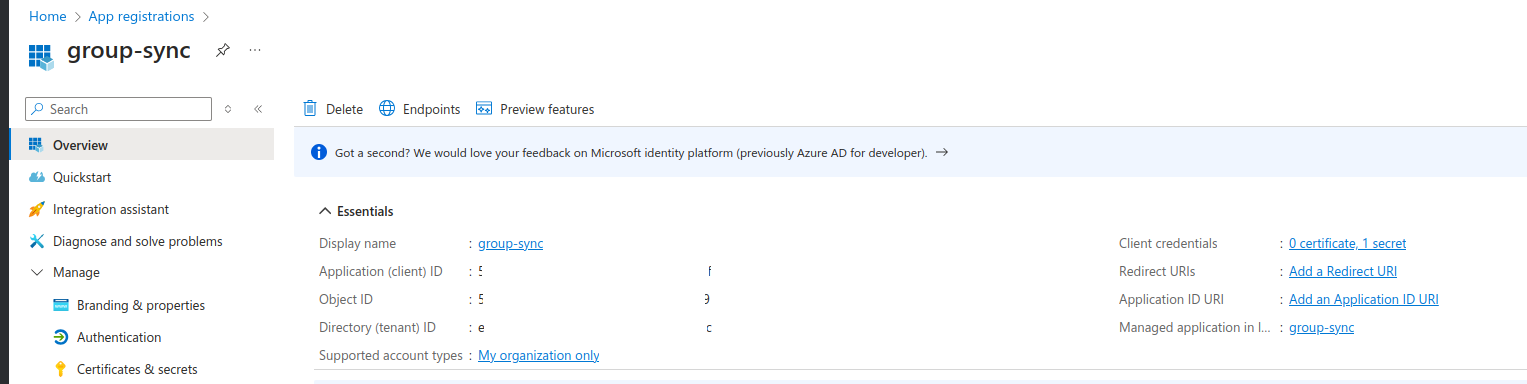
From the app registration Overview tab, note the Application (client) ID and Directory (tenant) ID. Send these to Stakater Support via a secure channel along with the client secret:
- Application (client) ID
- Directory (tenant) ID
- Client secret
With the identity provider registration complete, continue to Configure Azure group sync to synchronize your Azure AD groups into KubeStack+.