Build and push your image to Harbor#
By the end of this guide, your container image will be built and available in Harbor, ready to be referenced in a Helm chart deployment.
Replace the following placeholders with your own values throughout this guide:
| Placeholder | Description |
|---|---|
HARBOR_REGISTRY_URL |
The Docker registry URL from Harbor (find it via Forecastle) |
APP_NAME |
Your application name |
TENANT_NAME |
Your tenant name |
IMAGE_TAG |
The image tag (e.g. 1.0.0) |
1. Find your Harbor registry URL#
Open Forecastle from your cluster and locate the Harbor tile. Copy the Harbor URL, then derive the Docker registry URL:
- Remove the
https://prefix - Add
-dockerafter theharborportion of the hostname
The result is your HARBOR_REGISTRY_URL (e.g. harbor-docker-stakater-harbor.apps.clustername.example.com).
2. Log in to the registry#
Contact your cluster administrator if you do not have registry credentials.
3. Build the image#
Run the following command from your application directory:
buildah bud --format=docker --tls-verify=false --no-cache -f ./Dockerfile \
  -t HARBOR_REGISTRY_URL/TENANT_NAME/APP_NAME:IMAGE_TAG .
4. Push the image#
buildah push HARBOR_REGISTRY_URL/TENANT_NAME/APP_NAME:IMAGE_TAG \
  docker://HARBOR_REGISTRY_URL/TENANT_NAME/APP_NAME:IMAGE_TAG
5. Verify#
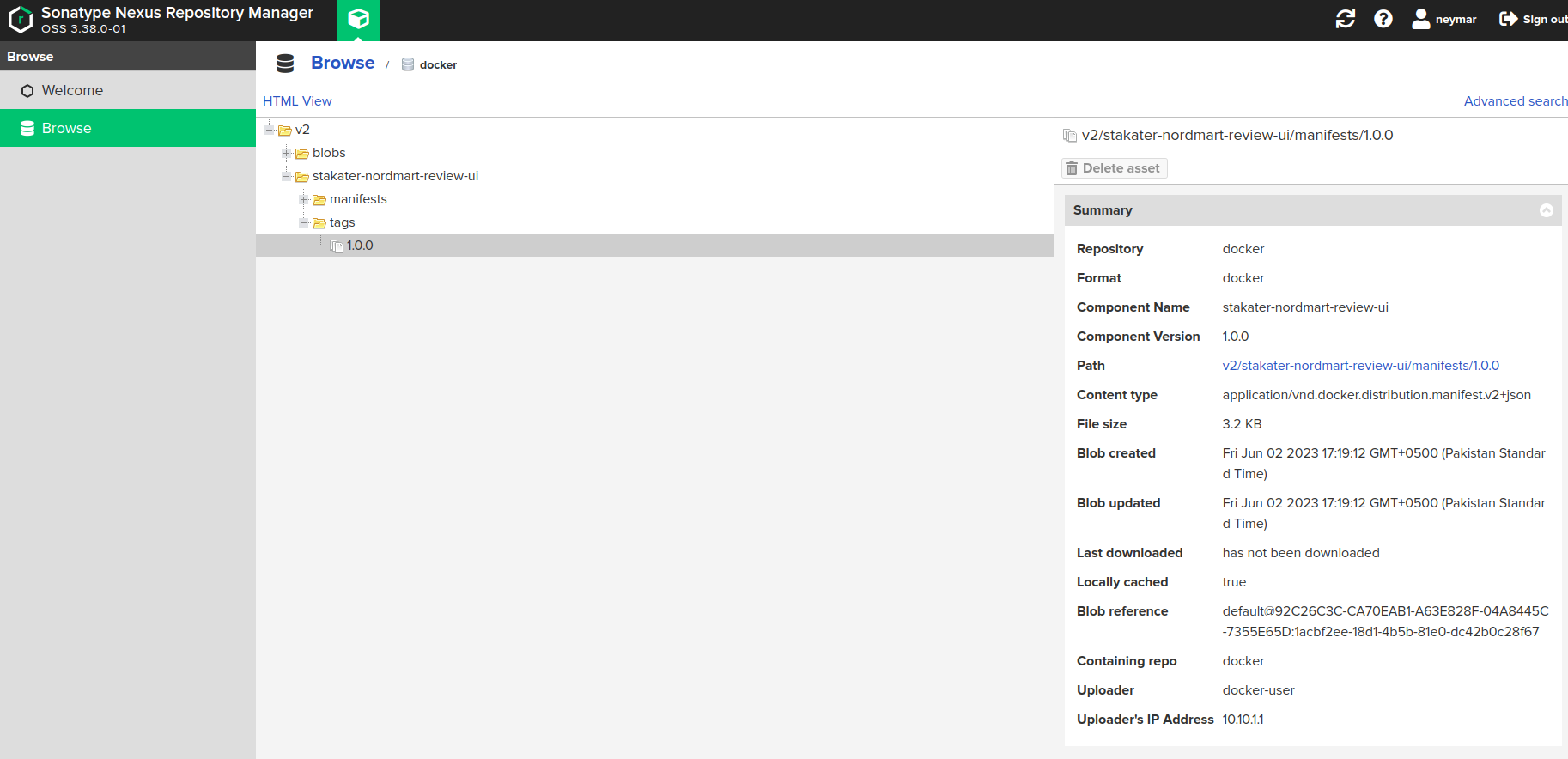
Open the Harbor UI from Forecastle. Select your project and confirm the image is listed with the expected tag.
With your image in Harbor, continue to Package and push your chart to make it deployable via ArgoCD.